Using the Online Help System
The G-EGD Online Help uses a variety of navigational tools so you can easily find the content you are looking for.
Navigating the Home Page
When you first open the G-EGD Online Help, you will see the Home Page. From here, you can use a variety of search features to find topics.
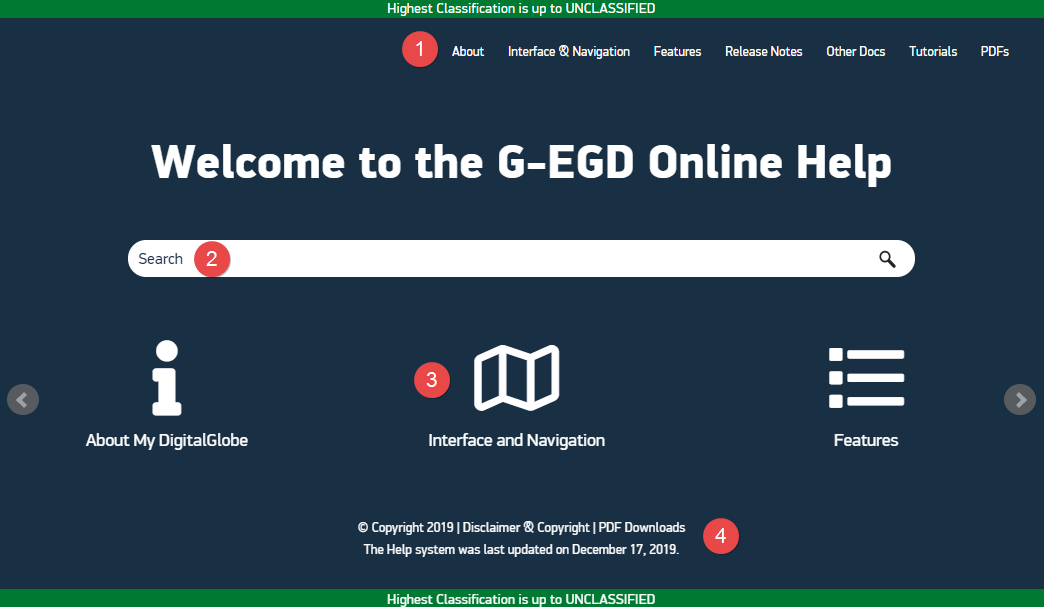
G-EGD Online Help Home Page
| Item | Description |
|---|---|---|
1 | Top Navigation | Browse the entire Help system using the top navigation menu. Select a topic to open it. When viewing the Help on a smaller screen, such as a tablet or mobile device, the |
2 | Search | Search the entire Help system for a specific term. |
3 | Quick Launch Buttons | Select a button to jump to a major section of the Help. Three buttons display at a time; use the arrows on either side of the page to see additional options. |
4 | Help System Information | View copyright information, the date the help system was last updated, and a link to available PDF downloads. |
 to open or close a right-side navigation menu and navigate the entire Help system using a tree structure.
Navigating a Help Topic
When viewing a Help topic, you have additional options for navigation and search.
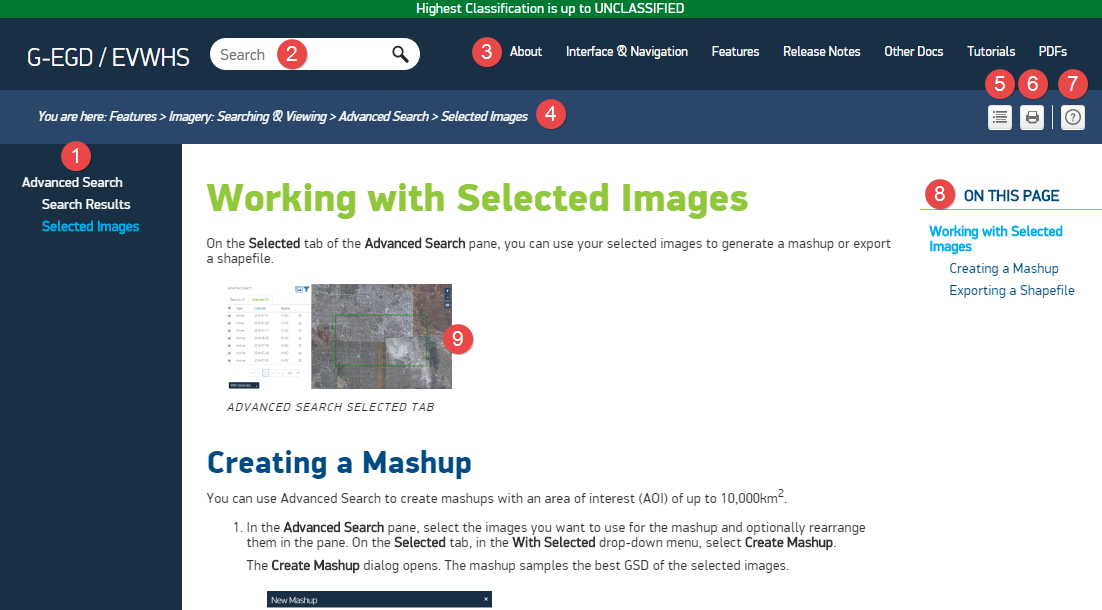
Example of an Online Help Topic
| Item | Icon | Description |
|---|---|---|---|
1 | Section Navigation |
| Browse topics in the current Help section (e.g., Maps & Navigation, 2018 Release Notes) from the side navigation menu. When viewing the Help on a smaller screen, such as a tablet or mobile device, the |
2 | Search |
| Search the entire Help system for a specific term. |
3 | Top Navigation |
| Browse the entire Help system using the top navigation menu. Select a topic to open it. When viewing the Help on a smaller screen, such as a tablet or mobile device, the |
4 | Breadcrumbs |
| View your relative location in the Help. Breadcrumbs are linked, so you can select any portion of the path to jump to that page in the Help. |
5 | Expand / Collapse All |
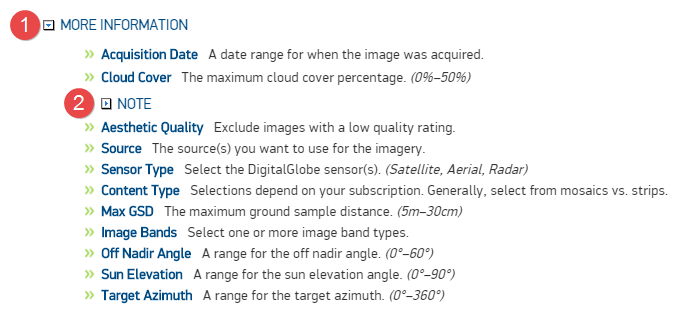
| Select this icon to expand all closed drop-down menus on a page. Select it again to collapse all open drop-down menus. Some content in the Help system—such as lists, additional information, or steps with multiple options—is nested within drop-down menus. This allows topics to load quickly and scroll smoothly.
Drop-down menus. Number 1 shows an expanded drop-down. Number 2 shows a collapsed drop-down. |
6 | Print Topic |
| Send the current topic to the printer. |
7 | Help |
| Display information about how to use the Online Help system. |
| 8 | On This Page |
| Select a heading to jump to a section in the topic. This navigation option is available in longer topics with multiple headings. |
9 | Image |
| Select an image to expand its thumbnail. Thumbnail images allow each topic to load quickly and scroll smoothly. If a thumbnail image does not provide enough detail, select it to view a larger image. |